Showing posts with label 23 things. Show all posts

Finale!

Is this really the end? Or just the beginning?
Wow! Congratulations! You are superstars! You've reached the 23rd thing. Give yourself a pat on the back for completing the program! We hope you have enjoyed the process and learned some things. But before we send you off into the brave new world of Web 2.0, there is one last discovery post.

For your last and final exercise for this program, please reflect on your learning journey and post a few thoughts. Here are some questions to prompt you if you're drawing a blank:

  • What were your favorite Things (like in the Sound of Music) and discoveries?
  • What did you find especially useful?
  • What would you like to know more about?
  • How did you connect with others doing the 23 Things?
  • How has this program assissted or affected your lifelong learning and/or your classroom?
  • Were there any take-aways or unexpected outcomes from this program that surprised you?
  • What could we do differently to improve upon this program's format or content?
  • What do you love so much that you would like to help at an idea session for fellow staff members?
  • How would you describe your learning experience in one word or in one sentence, so we could use your words to promote 23 Things learning activities to others?
And last, but not least…
  • If we offered another discovery program like this in the future, would you again choose to participate?
After all the time and effort you have invested in 23 Things, we hope you will continue to experiment with new tools and continue to blog about your learning and the challenges of Web2.0. Here are some ideas:
  • Maintain your blog as you continue to learn and play with new Web 2.0 tools.
  • Add your blog URL to your e-mail signature line.
  • Re-purpose your blog as your education blog.
  • Share your blog with your colleagues and administrators.
  • Start your own 23 Things with colleagues, friends, family. The concept is adaptable to any content--23 Books, 23 Movies, 23 Football Games, 23 Anything You Can Think Of. It is a great way to create and strengthen community through learning and discussion.
Be sure to let us know how you plan to continue.Thanks for participating and being so willing to share! Thank you all for participating in this journey. It has been fantastic and we hope that the journey simply continues on from here.

Thing 22: YouTube

By now, the world knows YouTube(started by a Saint Paul Central High School grad!) as the source of all things video on the Internet. And we do mean “all things.” The good, the bad, and the ugly are all there for all to see—one reason many districts block YouTube. Another reason is bandwidth. Like music, video is a bandwidth hog. We recommend you complete this exercise during light Internet usage times.

YouTube revolutionized the way video is shared on the Internet by making it easy to upload and share videos. Other video sites have popped up, including Google Video. YouTube is now owned by Google, so it will be interesting to see the how the evolution/merging of the two sites happens. Right now, a search of either one returns results from both sites.

There are dozens of other video sites, but among the Web 2.0 players in this area, YouTube is currently top dog serving up over 1 million video views a day.

Do some searching around YouTube yourself and see what the site has to offer. You'll find everything from 1970s TV commercials or 60s music videos to library dominos and kids singing aboutbloopers here. Of course, like any free site you’ll also find a lot stuff not worth watching too. But that doesn’t mean you shouldn’t explore and see for yourself what the site has too offer. :)

Discovery Exercise:

  1. Explore YouTube or Google Video find a video worth adding as an entry in your blog.
  2. Talk with your students. Ask them if they have videos online that they have created (probably for classes) and check them out! You might be surprised at their talent!
  3. Create a blog post about your experience. What did you like or dislike about the site?why did you choose the video that you did? Can you see any ways to use video on your web site or in your class?
OPTIONAL: Try placing the video inside your blog using the copy and paste code for the for "Embeddable Player.” Note: you'll need to use Blogger's Edit HTML tab when pasting this code.
Other popular video hosting sites:

Yahoo Videos
Google videos
Others - top video site list
NOTE: Videos, like music downloads, are bandwidth hogs. It is recommended that you complete this exercise during light internet usage times.

Challenge

1. Feeling brave? Make your own video and upload it to YouTube or Google Video. Promote a program or introduce your library to the community or something else. If you do, be sure to embed it in your blog. We all want to see it!

2. Jumpcut is a Yahoo! product that lets you upload video or photos, re-mix and edit them, and produce a video. It is all online, easy to use, and with many other features, including slide shows and clips to add to yours as you build your movie. And, like most Web 2.0 tools, it offers a community of like-minded participants who want to watch your videos and share theirs with you. So jump right in and make a video to share with us. Post it to your blog and let us know just how easy it is to be creative!

Other Resources

Do you need a way to SAVE those YouTube videos so that you can use them in class without having to worry about an internet connection? Try any of these sites:

vixy.net

flvto.com

vconversion

zamzar

Viral videos are what our students are watching. It's an easy way to relate.

Thing 21: Podcasting 101

What? You want to learn how to be a podcaster too? In this Thing we will be looking at the "how" of podcasting… trying to keep it as simple as this web 2.0 primer allows. There are myriad resources available for people "serious" about podcasting.

If you want to go about it the "real" way, you'll need to equip yourself with some things. Mostly, you'll need a microphone and the freeware program Audacity (for sound recording). You will ultimately need those things, but peruse the aforementioned resources to learn more first.

We are just trying things out with these 23 things… getting that "taste" for the web 2.0 tools, so we'll keep it easy. (Although podcasting itself isn't difficult either.) So, here are some resources for recording sound online (or through your cell phone). Click through them to see which one calls out to you, and then prepare for some sound-magic!

Discovery Resources

Earfl

Gabcast

Gcast

Cinch

VoiceThread

Discovery Exercise

  1. Create an account (if needed) at the site that called your name.
  2. Add an audio post about your experience to your blog.
    • You did it! You created a sound file that could be the beginning of a podcasting paradigm for you! What did you think? Was it easy? Was it hard? Could your students do it? For what purpose? Where do you want to go from here?
    • Did you notice that you could have used your Jott account to create saved audio as well? I'm glad that you tried new things, though!

Challenge (optional)

  1. Check out the poducateme guide; reading specifically the second paragraph about the studies done at Duke University about the use of podcasts in classrooms.
  2. Keep up with your audio goodness. Make it a "real" podcast by continuing it on a regular basis. Maybe add it as a permanent guest on your blog!

Thing 20: Podcasting

Podcasts, Smodcasts!

The word podcast is used to refer to a non-musical audio or video broadcast that is distributed over the Internet. What differentiates a podcast from regular streaming audio or video is that the delivery method for podcasts is often done automatically through RSS.

In 2005, "podcast" was named the "word of the year" by New Oxford American Dictionary and with the growth of podcasting over the last 24 months, it's easy to see why.

Podcasts take many forms, from short 1-10 minutes commentaries to much longer in person interviews or panel group discussions. There’s a podcast out there for just about every interest area and the best part about this technology is that you don’t have to have an iPod or a MP3 player to access them. Since podcasts use the MP3 file format, a popular compressed format for audio files, you really just need a PC (or portal device) with headphones or a speaker.

iTunes, the free downloadable application created by Apple is the directory finding service most associated with podcasts, but if you don’t have iTunes installed there are still plenty of options.

For this discovery exercise participants are asked to take a look at some popular podcast directory tools. Do some exploring on your own and locate a podcast that is of interest to you. Once found, you can easily pull the RSS feed into your Google Reader account as well, so that when new casts become available you’ll be automatically notified of their existence.

Discovery Resources:

  • To find out more about podcasts start with Yahoo: What is a podcast tutorial?
  • There are many, many podcast directories and finding tools out there. Here are a few of the more popular ones that, unlike iTunes, don't require a software download:
  1. Podcast.com
  2. Podcastalley.com
  3. Podcast Directory
  4. Educational Podcast Directory
Discovery Exercise

  1. Take a look at one or two of the podcast directories listed (or iTunes, if you have it) and see if you can find a podcast that interests you. See if you can find some interesting education related podcasts here.
  2. Add the RSS feed for a podcast to your Google Reader
  3. Create a blog post about your discovery process. Did you find anything useful?

Thing 19: Jott

When you feel you just haven't gotten enough nagging (and perhaps need more), you can nag yourself with electronics. Okay, so maybe that casts a bad light on this Thing… so let's try again. Here's a story (the names have been changed to protect the innocent) to illustrate the reason for this Thing:

Jane is a teacher. Every night she stays up working on school work: planning, correcting, reflecting. Every morning she is up early so she can get to school with time to breathe.

On this very ordinary Tuesday morning, Jane gets up, showers, puts on her clothes (ugh, forgot to iron again), eats breakfast (remembering that they are almost out of milk and eggs) , brushes her teeth (oops, she needs to schedule that dentist appointment), puts on her makeup (almost out of mascara), picks up her school bag and is ready to walk out the door for her glorious day of work when Steve, her husband, trods slowly out of the bedroom, rubbing his eyes. "Hey, remember that we have that thing tonight… oh, and the baby needs diapers at home and more wipes at daycare." It's a good thing that they've been married long enough that Jane knows exactly what "thing" Steve is talking about. She smiles, gives him a kiss and leaves for the day.

In the car on the way to work, Jane goes over her mental list. "Grocery store: milk, eggs, mascara?. Once I get to work: call dentist. Target: diapers and wipes… wait, can I get that at the grocery store? Hmmm… there was one more thing… what was that?"

As she simmers about what that last thing is, she pulls into school and walks up to her room. She has two students waiting (they actually came to school early!) for help with class. She starts to pull out worksheets and think about what steps she should take for each student for maximal understanding.

And what has happened to that mental list? By the time 3:00 hits, she's at 50% (at best)… and that's with the understanding that nothing else has been added to that list during her day (which is improbable).

The problem for Jane (and many of us) is that she is pretty sure she will remember… and that she doesn't have access to anything to write on when she gets (or thinks about) the information.

Jott, and programs like it, close this information gap. With Jott, you call in (on your cell/home/school phone) and leave a message (like "Remember the Milk!"). Jott then transcribes the information and sends you a text reminder for the time you set up.

Discovery Exercise

  1. Go to Jott and create an account.
  2. Call and send yourself a message/reminder.
  3. Blog about your experience and the possible applications in education or for yourself.

Discovery Resources

Jott

Remember the Milk

Evernote

Challenge

  1. Use Jott to post to your blog. (Now only possible by subscribing to the Jott service. It might be worth it!)
  2. Sign up for Remember the Milk and Jott or e-mail to your Remember the Milk account. It separates your task by due dates and will e-mail you reminders. You can also sync this with your iGoogle page (which you automatically have b/c you have a Google ID). See Vicki Davis's Post on Rocking your Remember the Milk.
  3. Use one or more of the discovery resources listed above and sync them with Google Calendar. Blog about your experience. (this one could be a Thing on its own…)

Thing 18: Survey Goodness

If you chose the cell phone adventure last week, you might have found that even cell phones can be used for surveys… but in this Thing we will be discovering some of the "survey services" (that's fun to say) that are available for free online.


Polls and Surveys can be used for polling 100 people (like on "Family Feud"), making money (Surveysavvy), giving some statistics to things like elections (Gallup polls), and educational feedback (end-of-class surveys, to name one). What do all of these have in common? They are set up because they want feedback. What they do with that feedback (or how they interpret the feedback) changes as often as the wind (Are we, or are we not, in a recession?)… but the first step is always to get the feedback.

So this is our Thing for today. You get to discover the inner-workings of the various survey sites and really get a taste and feel for how they work. The fantastic part is that these sites (for the most part) do most of the data collecting and crunching for you. So you set up your survey and get immediate results… fully tailored with statistical analysis.

Here are the sites we'll be working with:

Discovery Exercise

  1. Check out (trial run or tour) at least two of the survey sites. See what they have to offer.
  2. Choose a site and create an account and
  3. Create (and use) a survey! Create the survey, have people take it, and take a look at the sleek results you get.
  4. Blog about the experience: what you liked and didn't like. What you hoped for and how you can use this personally/professionally.

*Hint: Surveys are also named "Choice" in Moodle if you're using it!

Thing 17: Googledocs

Many people use email and attached documents to share various versions of a project. This may work, but there are several obstacles to smooth exchange and editing. Attachments may not open or you or your collaborators may not have the same software program or the right version to open and edit a document. It is easy to lose track of which is the current version with all the changes.

Web 2.0 tools make collaborating on creating a document or other publication easier. Documents are online and available from any computer with Internet access. Edits are easy to make and save. The program saves a document’s history with all changes made and indicates who made the changes. A full set of word processing tools makes formatting simple. Click the toolbar buttons to bold, underline, indent, change font or number format, change cell background color and so on.

Get the idea from Googledocs in Plain English (our favorite videos for learning!).

In this Thing, edit a famous document using these two collaboration tools. Both are free. You don’t need an account to edit these public documents. To create and share documents, you must sign up for an account.

Use Google Docs to create basic word processing documents, presentations, or spreadsheets from scratch or you can upload your existing files. Google Docs accepts most popular file formats, including DOC, XLS, ODT, ODS, RTF, CSV, PPT, etc. You can share documents with a select group or make the document public.

Discovery Exercise

  1. Watch Googledocs in Plain English (our favorite videos for learning!).
  2. Look at this public document in Google Docs.
  3. Send an email to SWC023@gmail.com and we will invite you as a collaborator.Make as many edits and changes to the documents as you wish, using the various editing tools available.
  4. Read some Collaborative Learning classroom applications from techlearning.

Blog Prompts

  • Which of these tools is easier for you to use?
  • How do the features of each compare? Does one have features that would make you choose it over the other?
  • How can I use this for/with our students?
  • What would the Founding Fathers think?

Challenge (optional)

1. Sign in to your Google Account.

2. Create and share another type of document using other Google tools—Sheet (spreadsheet), Show (presentation tool), Notebook, or Wiki.

3. Publish the document (Public) and post the link on your blog for others to view and/or edit.

4. Blog about the tools' ease of use, potential in the school, and other thoughts.

Other Resources

Slideshare is self-proclaimed as " the best way to share your presentations with the world. Let your ideas reach a broad audience. Share publicly or privately. Add audio to create a webinar."

Thing 15: Choose Your Own Adventure (Part 3)

Choose Your Own Adventure: Part Three: Online telephone and/or Cell Phone Serendipity

We are breaths away from MEA week here in Minnesota, so this week is packed FULL of things that are just a lot of fun... but, fear not brave warriors, there is (almost) always a possible link to education and your classroom!


Online Telephony

Cell Phone Serendipity

Enjoy!!

Thing 14: Choose Your Own Adventure (Part 2)

Choose Your Own Adventure: Part Two: Digitial Storytelling and/or Musical Fun

It's almost MEA week in this great state of Minnesota, so this week is packed FULL of things that are just a lot of fun… but, fear not brave warriors, there is (almost) always a possible link to education and your classroom!


So, for Part Two, here's your menu:


Digital Storytelling

Musical Fun

Thing 13: Choose Your Own Adventure! (Part 1)

Choose Your Own Adventure: Part One: Funnies, Pictures and/or Mindmaps

It's almost MEA week in this great state of Minnesota, so in order to combat the "too-many-5-day-weeks-burnout", this week is packed FULL of things that are just a lot of fun… but, fear not brave warriors, there is (almost) always a possible link to education and your classroom!
So make your choice, but choose well!

(Just kidding. If you don't like your choice, switcheroo!)

Funnies (Comics/Cartoons)
Pictures/Images
Mindmaps

Thing 12: Try out Moodle


As we learned in the last "Thing", Moodle is an exciting educational technology that easily lends itself to creating "hybrid" classes (online and in-classroom). We saw and thought about possible applications from a very broad perspective. In this "Thing", we get to dig a little deeper and take a look at some of the specific things that Moodle has to offer.

*A quick note: One of the Challenge items from our last discovery was to get your own Moodle shell set up. If you're interested in Moodle, It might be worth your time to do that now so that, when you learn about the specifics, you can apply them right away and get playing!

On this discovery journey, you are going to get to log into a Moodle demo course and check out some of the things Moodle has to offer and dream about possibilities for you and your students.

Discovery Exercise

  1. Go to the Moodle Demo Course (top one) and create an account.
  2. Once your account is created, go back to the Moodle Demo Course and enroll in the course (on the left hand side).
  3. Check out 3-5 things in the demo course. They walk you through a pretty easy demonstration of each of the things you could use within Moodle. (If you're at a loss, check out Assignments, Quizzes, Choices, Forums, Wikis and Workshops.)
  4. Blog about your experience with Moodle! (If you're at a loss, check out the prompt ideas below.)

Discovery Resources

Blog Prompts

  • What specific things are especially interesting to you in Moodle?
  • What applications that we have already learned about do you see in Moodle?
  • What ideas do you have for the use of specific Moodle applications in your area?
  • If you were to start with just one thing in Moodle, what would you be sure to do?
  • What solutions are there for students who do not have internet access at home? (How do we, as educators, bridge that inequality and still utilize Moodle to its potential?)

Challenge (optional)

  • E-mail Gary Blok (if you're a member of district 833) and ask him to set you up with a class in Moodle for one of your classes. And then read this: Getting Started for Teachers
  • If you already have a Moodle class, try one new thing that you learned about in the Moodle Demo Course.
  • Check out the "Teaching Do's" (like "encourage students to learn together") and "Teaching Don'ts" (like "Don't get overwhelmed by Moodle") .

Thing 11: Whatsa Moodle?

Oodles of Moodles. Moodles of Noodles? Noodles of Oodles? Hm. I'm lost. Are we talking about Ramen, here?


Moodle is an open source (read: free) e-learning software. Here's a video from the Moodle people showing "what Moodle is all about". Schools across the world (from elementary to college) are using Moodle. The only thing one would need to run Moodle is a server that can hold the program. Our district (SWC833) has a Moodle server, so we are set to go!

Many of the things that you have already learned about (wikis, blogs) and things you will soon be learning about (online collaboration, surveys, and more) are integrated into Moodle. If you have ever wished for:
○ Online quizzes (scored automatically)
○ Online activities for students to access anywhere via the internet
○ Online notes/PowerPoint presentations for students to access as study resources
○ Forums for shared student thought/discussions
○ "Paperless" assignments (created online or uploaded by each student) with easy integrated grading

Then you might want to check out Moodle. Moodle is a simple, yet truly robust software that is available to increase web 2.0 usage and efficiency. (In the next "Thing" you'll have a chance to try out a Moodle demo course and also set up your own Moodle shell.)

Discovery Exercise
1. Watch the very short (about 2 minutes) video about "What is Moodle".
2. Watch the video about Moodle in the Classroom, featuring middle school teacher, Molly Tipton.
3. Blog about your thoughts about Moodle thus far. (If you're at a loss, check out some blog prompt ideas below.)

Discovery Resources
• One teacher talks about Moodle and the use in education, the use in his classroom and the "ups and downs".
• His example class of Moodle for you to check out.

Blog Prompts
• What do you think the strengths/weaknesses of using "hybrid" (online and classroom) courses are?
• What ideas do you have for the use of Moodle in your area?
• From what you know so far, If you could implement just one thing in Moodle, what would you be sure to do?

Challenge (optional) (these continue in the next "thing" as well)
• E-mail Gary Blok (if you're a member of district 833) and ask him to set you up with a class in Moodle for one of your classes. And then read this: Getting Started for Teachers
• If you already have a Moodle class, try one new thing that Molly Tipton talked about in the "Moodle in the Classroom" video. Or check out the "tips" in Getting Started for Teachers.
• Check out the "Teaching Do's" (like "encourage students to learn together") and "Teaching Don'ts" (like "Don't get overwhelmed by Moodle") .

Thing 5: Educate yourself


Add at least three other news feeds, blogs, or Web page updates to your account. There are several ways you can locate RSS feeds:

When visiting your favorite websites, look for the RSS indicator. Often a feed icon will be displayed somewhere in the navigation of the site. The orange square above is one type of RSS feed icon. Here are some other RSS feed icons.

Do a blog search in Google. This search limits results only to blog postings. This can lead you to bloggers talking about what you are interested in.

Other Search tools that can help you find feeds:
Feedster - One of the largest collections of RSS feeds, Feedster lets you search for feeds in three categories: news, blogs & podcasts
Topix.net - This search tool allows you to locate recent newsfeed items based upon keyword or phrase searching. The tool focuses specifically on news and media outlet RSS feeds for information, not weblogs.
Syndic8.com - Syndic8 is an open directory of RSS feeds that contains thousands of RSS feeds that users have submitted.
Technorati - Technorati is a popular blog finding tool that lets you search for blogs. Since RSS feeds are inherent to all blogging tools, Technorati Blog Search can help you find RSS feeds for topic specific blogs you may be interested in. Additonal Resource: Technorati Tutorial on finding and adding your blog

Find some education or technology blogs, headlines, or other resources. Share those you find useful via a blog post.

Some places to start: edubloggers and interesting rss feeds dealing with education:
*Kathy Schrock's List of Education/Technology Bloggers
*Support Blogging
*Top 100 Education blogs (OEDb)
*CNN's education RSS feed
*Classroom 2.0
*Infinite Thinking
*The Edublog Awards
*International Edublogger directory

Discovery Exercise:

  1. Explore some of the search tools noted above that can help you locate some news feeds.
  2. Add at least three other news feeds, blogs or Web Page updates to your account (aside from the feeds from the other participants). Be sure to also add the feed for this project! (There won't be any more reminder e-mails to the entire staff, so this is the best way to keep up!)
  3. Create a blog post about your experience. Don't know what to blog about? Here some questions to think about ...
  • What do you like about RSS and newsreaders?
  • How do you think you might be able to use this technology in your school or personal life?
  • How can teachers use RSS or take advantage of this new technology?
  • Which tool for finding feeds was easiest to use?
  • What other tools or ways did you find to locate newsfeeds?
  • Did you find any great sources we should all add to our feed reader?

Challenge (optional):

  1. Make it public! Add your blogroll (the list of sites you subscribe to via RSS) on your blog! On blogger, it's easy through the layout tab… and then adding a page element!

  2. If you've been doing this for a while, check out Todd's blog about Google Reader... and then try out the "stars and notes" for yourself!

Are you bummed that there are only two Things this week? Keep learning and check out some of the challenges from the past few Things! (Sitemeter is a fun way to keep track of who is visiting your site!)

Thing 4: Life Really Simple

Make life "really simple" with RSS & a newsreader
Thanks to all of you brave and inquisitive souls who are participating in this adventure... I hope you're having fun already! There are so many more fun things to come!

So everyone participating in 23 Things now has a blog and we told you to read your fellow learners’ blogs. Are you thinking, “Wait, I have to click on 100+ bookmarks to see if anyone has updated?!? Forget it; waaaay too much time.”

But what if you could visit all those blogs and more information sources in just one place and all at the same time? Would that be valuable to you? Well, you can! A lot smart people out there who like to keep up-to-date and save time have created services to make it easy to follow your favorite blogs and other information sources. It’s called RSS.

RSS stands for “Really Simple Syndication” and is a file format for delivering regularly updated information over the web.

In the information world, RSS has changed the way news, media, and content creators share information, and it is changing the way everyday users are consuming information. Join the revolution by setting up a RSS account.

Discovery Exercise:

1. Watch this Common Craft video about RSS and/or read more .
2. Set up an aggregator account using Google Reader. It’s free. Follow the directions at Google Reader (since you should already have a Google account for your blog) or the step-by-step directions for a Google Reader.
3. You will want to add some of your fellow participants’ blogs to your Google Reader account. This will help you keep up-to-date on they have to say about the Things, their discoveries, and comments. You can add additional feeds for Web sites, news sites, podcasts, and more, too.
4. Blog about this experience on your blog! Don't know what to blog about? Here are some questions to ponder...

  • What do you like about RSS and newsreaders?

  • How do you think you might be able to use this technology in your school or personal life?

  • How can teachers or media specialists use RSS or take advantage of this new technology?

  • Which tool for finding feeds was easiest to use?

  • What other tools or ways did you find to locate newsfeeds?

  • Did you find any great sources we should all add to our feed reader?

Resources
These resources will give you more information on the hows and whys of RSS.
Feed Me: A gentle introduction to Internet feeds - a good tutorial from Palinet,
Will Richardson shares an excellent eleven page guide to RSS for educators.

Challenge (optional)
If you already have a Google reader account, try out Bloglines, Netvibes or any of the other RSS services and blog about your thoughts about each.

Have fun finding and reading blogs (next thing!). But beware; it can be addictive!

Thing 3: Register your blog

Register your blog.

If you’ve made it this far, you already have three items or “things” completed of the twenty three!! Way to go!

Here's how to register:
  • Click here to register your blog. Once you have clicked the Register button, you are registered. You will not receive a confirmation email. SurveyMonkey, the tool we use for registration is very reliable; we will get the registration.

  • We will add you to the 23 Things blog lists. We will not list your name; only your blog's name. Remember, it may take a week or so to get your blog on the mother blog. Don't panic (and don't re-register!)--it will get there as soon as we can get it up.

You’re ready to start posting!

Whenever you complete a Thing, write a post reflecting your experience with the Thing you accomplished. Please clearly label each entry in your blog in with Thing number and the subject. We just need to be able to see which Thing you are doing. Read and comment on other 23 Things bloggers’ posts, too. That’s part of being part of this educational learning community. And everyone likes feedback.

Each of your posts should provide insights into what you’ve discovered and learned. Share what worked for you, what didn’t, what you’ve shared with your colleagues, any surprises, frustrations, and eureka moments. We will offer some blog prompts to get you thinking, but don’t feel limited by those—splash out and share!

Remember, each participant must have her/his own blog to record progress.

Discovery Exercise:
  1. Register your blog through the link above.

  2. Be sure to properly label each of your blog entries (see above)

  3. Check out (and comment on) other people's blogs.

  4. Use another test post to record your thoughts thus far.

  5. Have fun!

NOTE: It may take a up to a week for your blog to appear on the Participants' Blogs lists. We must enter the info manually. If your blog does not appear a week after you register, email SWC023@gmail.com with your name, blog name, and blog URL. Check the FAQs for more info.

Challenge (optional)

1. Add features from Blogger's selections on Layout and Settings pages. Add a blog roll of blogs of your fellow participants or of other interesting blogs you've found. Add photos or video. How about a poll?

2. Already have a Blogger blog? Explore other blogging software and compare and contrast features. Which ones have great features? Which one would you recommend?

3. Add third party features to your blog--visitor counts, email subscriptions and more. Feedburner and Sitemeter are two sources of additional features.

4. Be sure to blog about your experience with the other blogging software and/or third party features. Any features you think all blogs should have?

Thing 2: Blog-o-rama!

Blog-o-rama!

Thing 2: Set up your blog
Now that you have a better idea of what 23 Things is all about, it’s time to set up your very own blog to begin recording your progress and thoughts on the 23 Things. There are several free online blog hosting services including Wordpress & Typepad, but we recommend Blogger, a Google product.

This is a very important Thing. You will record your progress in your blog & others will be reading your blog. Read through all of the instructions!

IMPORTANT NOTE: How you choose to identify yourself on your blog is your choice. You can blog under a screen name, anonymously, or as yourself. Others will be reading, so make your choice based on that information! Be sure to name your blog something creatively 23!

Setup your blog by following these steps:

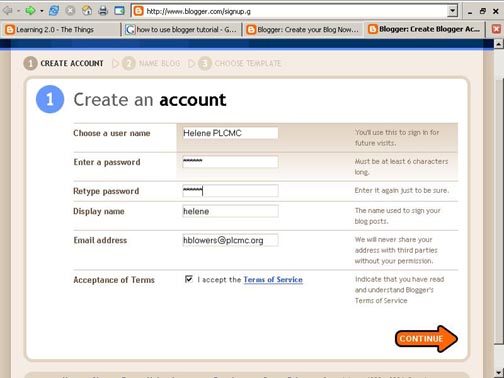
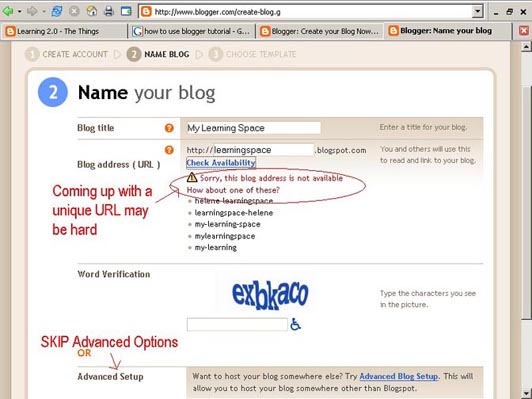
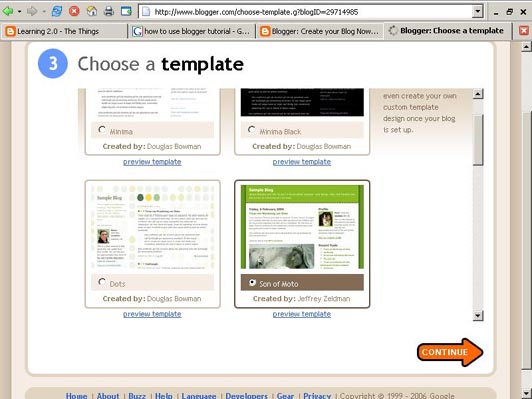
Creating a blog using Blogger takes just three steps:

  1. Create an account (view screenshot)

  2. Name your blog (view screenshot)

  3. Select your template. (view screenshot)

Once you’ve created your blog here are two important things to know:

  • To add posts: The maintenance interface that you will use to add posts, edit or change the step-up your blog is accessed online at http://www.blogger.com/ Be sure to write down your login and password.

  • To view your blog: Your blog address is http://(xxxx).blogspot.com/, (xxxx)=the unique identifier you entered in Step 2 (there is no www). Be sure to also write down your blog address.

If you run into problems or would like more information about blogs and using Blogger here are some discovery resources you can use:

OK -- Now, it’s your turn...


Discovery Exercise:

  1. Setup a blog for yourself through Blogger.

  2. Add a test post or two.

    Note: Use one of your test posts to create an entry about the habits among the
    7 and 1/2 lifelong learning habits that is easiest and hardest for you & why.

  3. Have fun!!!!

Blogger Settings

Be sure that you have enabled comments. We want to comment on your posts, as do others.

1. Under the Settings Tab, click the Comments link. We recommend the second choice under Who Can Comment? Registered Users.

2. If you want to moderate comments (review all comments before they are published) scroll down and turn moderation on.

3. If you want others (up to 10 people) to know when you receive a comment, you can enter their email addresses in the box near the bottom of that page.

Click Save Settings once you are done.

Select your template.

  • The fun part--Blogger has several templates so choose one that fits you. The first Choose Template screen has only a few; choose one. If you want to experiment with other Templates after your blog is set-up, go to Layout and choose Pick New Template. You will see many more choices. Try some; it is easy to see how your blog will look in the different choices.
Hints

  • If you run into problems, check out Blogger's Help file and Tutorial or here’s a MINITEX Blog Tutorial . Another tutorial is here.

  • Be sure to enable comments under Settings on Blogger.

  • Be sure your blog title appears on the masthead of your blog. Go to settings and enter it in the Title box if it does not appear.

  • Spend some time exploring the features of Blogger—spell check, how to upload photos or video, font choices, text size and color, and more!

Thing 1: Lifelong Learning

Welcome! It's great that you're checking out this fantastic adventure!
In this 23 things adventure, we will be discovering many Web 2.0 tools. Web 2.0 is a term encompassing philosophies and concepts like harnessing users in both design and implementation of services, and embracing constant change as a development cycle over the traditional notion of upgrades. Here's an interesting article about Web 2.0 in education. Web 2.0 tools make it easy to create content and then share it via the Internet. Schools (teachers, students and everyone involved) can use the tools to promote programs and services, create useful content, and communicate it to their users.

Among schools, lifelong learning is one of those core values we write our lesson plans for. So it makes sense that before we embark on this new online learning and discovery journey that we should take a few minutes to review a few habits that can assist in creating lifelong learners.

These habits, which we’ve called the Seven and 1/2 Habits of Highly Successful Lifelong Learners, will provide you with a refresher on what it means to be a lifelong learner.

Discovery Exercise:

  1. Make sure you have headphones or speakers attached to your computer.
  2. Open up the 7 & 1/2 Habits online tutorial and view the online tutorial.
  3. As you watch and listen, write down which habit among the 7 & 1/2 that is easiest for you and which is hardest. You will use your personal blog (which you will set up next) to post your thoughts about lifelong learning.

Have fun! If you haven't jumped on board yet, it's never too late to become a lifelong learner.

Challenge: (optional)

1. Watch this video. Stephen Abram kicks off 23 Things at Murdoch University Library in Australia.
Write about:
We know time is always an issue--Stephen Abram shares some ideas on where to find the time for 23 Things. Where will you find the time?


Early Birds:

If you're already aching to get started, move on to Thing 2: setting up your own blog!

Discovery is so much fun!

Have you ever thought, ”Gosh, I wish I had time to learn more about blogs, wikis, or (enter your Web 2.0 tool here)?” Well, this is your chance to take the time to focus on your personal and professional development around Web 2.0 tools. It’s fun to explore these tools and figure out ways to use them in school, with your personal Web sites, or in other ways.

SWC's 23 Things is a twist on the Library Learning 2.0 program developed by Helene Blowers at the Public Library of Charlotte & Mecklenberg County and adopted or adapted by many other libraries (including Minnesota Libraries with 23 Things on a Stick) and organizations since then.Learning 2.0 is online learning program that encourages staff to learn more about emerging technologies on the web that are changing the way people, society and schools access information and communicate with each other.

Over the course of the next nine weeks, this website will highlight “23 Things” and discovery exercises to help staff become familiar with blogging, RSS news feeds, tagging, wikis, podcasting, online applications, and video and image hosting sites.To familiarize yourself with this project, be sure to read the About page. The FAQs should answer most of your questions about this program. If not, then please add your question to the FAQ page as a comment.So fasten your seat belts, grab your mouse and get ready for a discovery adventure… and remember, it's OK to play with technology and have fun!